Integrating Claude with Obsidian for a Local-First Knowledge Workflow
A practical, public-safe guide to connecting Claude with an Obsidian vault using copy-paste workflows, Claude Projects, and MCP.
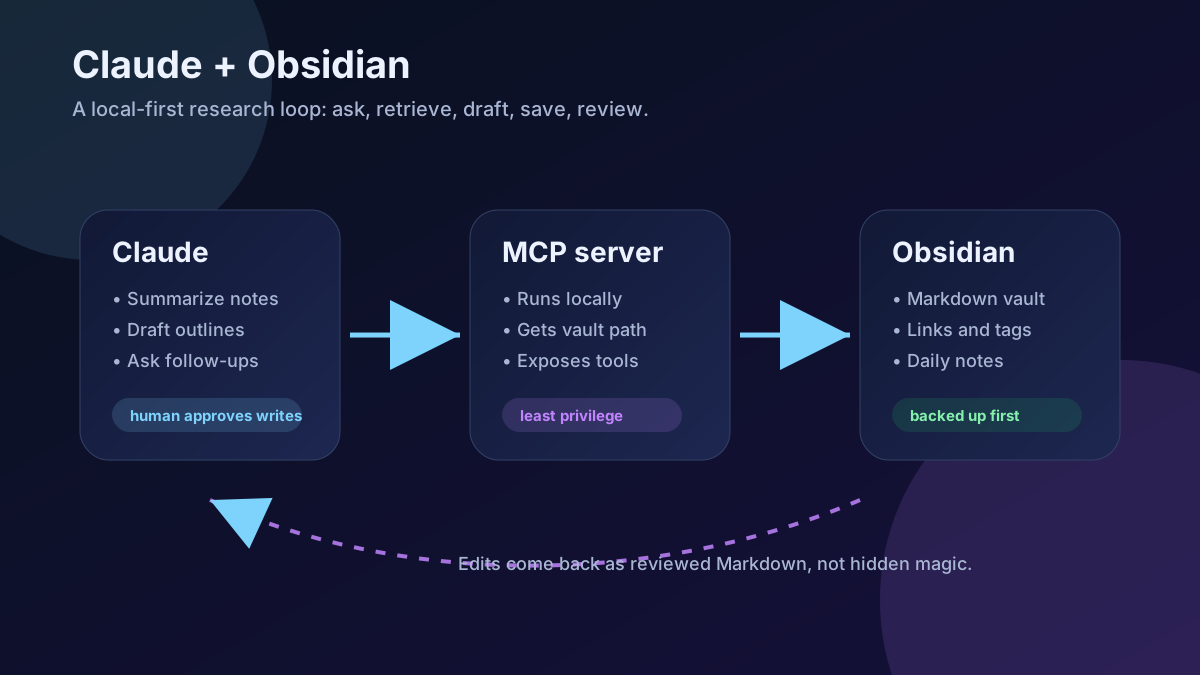
Obsidian is where I want long-lived notes to live. Claude is where I want fast synthesis, rewriting, and exploration to happen. The useful workflow is not “let the AI take over my vault.” It is a tighter loop:
- keep source notes in plain Markdown,
- give Claude only the context it needs,
- ask Claude to produce a reviewable draft or edit,
- save the result back into Obsidian deliberately.
That keeps Obsidian as the system of record and Claude as a thinking partner.
What “integration” can mean
There are a few levels of integration. I would start simple and only add automation when the manual workflow becomes annoying.
Level 1: copy and paste
This sounds basic, but it is still the safest default.
Use it when:
- the note contains sensitive or messy material,
- you only need one summary or rewrite,
- you want to control exactly what leaves the vault,
- you are still learning what prompts work.
A good copy-paste prompt looks like this:
You are helping me clean up an Obsidian note.

Goal: turn these rough notes into a clear technical outline.
Keep: concrete steps, decisions, and open questions.
Remove: private names, credentials, hostnames, internal URLs, and exact paths.
Return: Markdown only.

Notes:
<paste selected note text here>
The important part is the boundary: paste a selected excerpt, not the whole vault.
Level 2: Claude Projects
Claude Projects are useful when you have stable instructions that you want Claude to remember across related chats. For an Obsidian workflow, I would create a project with instructions like:
You help maintain an Obsidian vault written in Markdown.
Prefer concise headings, short paragraphs, checklists, and wikilinks.
When asked to rewrite a note, preserve factual details but flag uncertainty.
Before suggesting content for public publishing, remove private identifiers,
credentials, internal hostnames, private IPs, and personal filesystem paths.
Return edits as Markdown that can be pasted back into Obsidian.
Then attach only the specific exported notes or sanitized Markdown files needed for the task.
Level 3: MCP access to the vault
The Model Context Protocol, or MCP, lets Claude Desktop call local tools. For Obsidian, an MCP server can expose vault operations such as search, read, create, or edit.
This is the most convenient option, but it also has the most risk. If you give a tool write access to your vault, treat it like a junior collaborator with fast hands: useful, but not something to leave unsupervised.
Before connecting anything
I would do these first:
- Back up the vault. Git, Obsidian Sync history, Time Machine, or another backup is fine. The point is rollback.
- Create a test vault. Try the integration on disposable notes before using your main vault.
- Decide read-only vs. write access. Read-only is enough for search, summarization, and drafting.
- Use a narrow vault path. Do not point tools at your whole home directory.
- Keep secrets out of notes. If a note contains tokens, credentials, private URLs, or real infrastructure details, do not hand it to an AI tool.
Option A: a clean manual workflow
This is the workflow I recommend even if you later add MCP.
1. Make a Claude-ready note template
In Obsidian, create a template called something like Claude brief.md:
---
tags:
  - claude-ready
status: draft
---

# Claude brief

## Goal

What do I want Claude to do?

## Audience

Who is this for?

## Constraints

- Keep private infrastructure details out.
- Use placeholders for domains, paths, and IPs.
- Ask before inventing missing details.

## Source notes

- [[Related note 1]]
- [[Related note 2]]

## Prompt

Draft an outline, list assumptions, and suggest edits.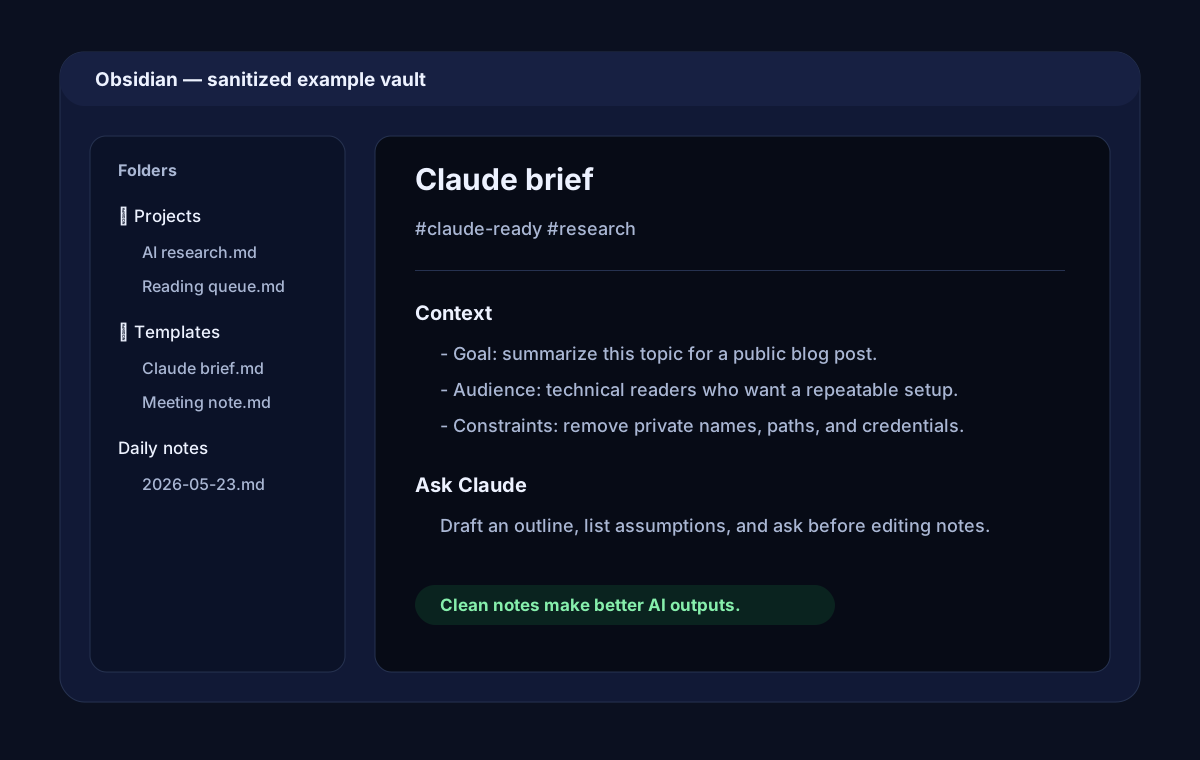
2. Export or copy only the relevant section
Instead of dumping an entire folder into Claude, copy the active section plus any linked note excerpts needed to understand it.
If the note is long, ask Claude to work in passes:
First pass: identify the structure and missing context.
Do not rewrite yet.
Return a list of questions and risks.
Then provide answers and ask for the rewrite.
3. Paste the result back as a new note
I prefer saving Claude output as a new note first:
# Draft - Claude output - 2026-05-23

Source: [[Original note]]
Status: needs review

<Claude output here>
That keeps the original note intact until the generated text has been reviewed.
Option B: connect Claude Desktop with an Obsidian MCP server
If you want Claude to search or read notes directly, one practical route is an Obsidian MCP server from npm. Two packages that exist today are:
mcp-obsidian: read and search access for an Obsidian vault or Markdown directory.obsidian-mcp: broader vault operations, including create/edit/delete tools if enabled.
For a first setup, I would start with read/search behavior and only add write tools after testing backups and approval habits.
1. Install prerequisites
You need:
- Claude Desktop with MCP support,
- Node.js available on the machine running Claude Desktop,
- an Obsidian vault stored on a local path,
- a current backup of that vault.
2. Find the Claude Desktop config file
Common locations are:
- macOS:
~/Library/Application Support/Claude/claude_desktop_config.json - Windows:
%APPDATA%\Claude\claude_desktop_config.json
If the file does not exist, create it. If it already exists, merge the mcpServers object into the existing JSON instead of replacing the whole file.
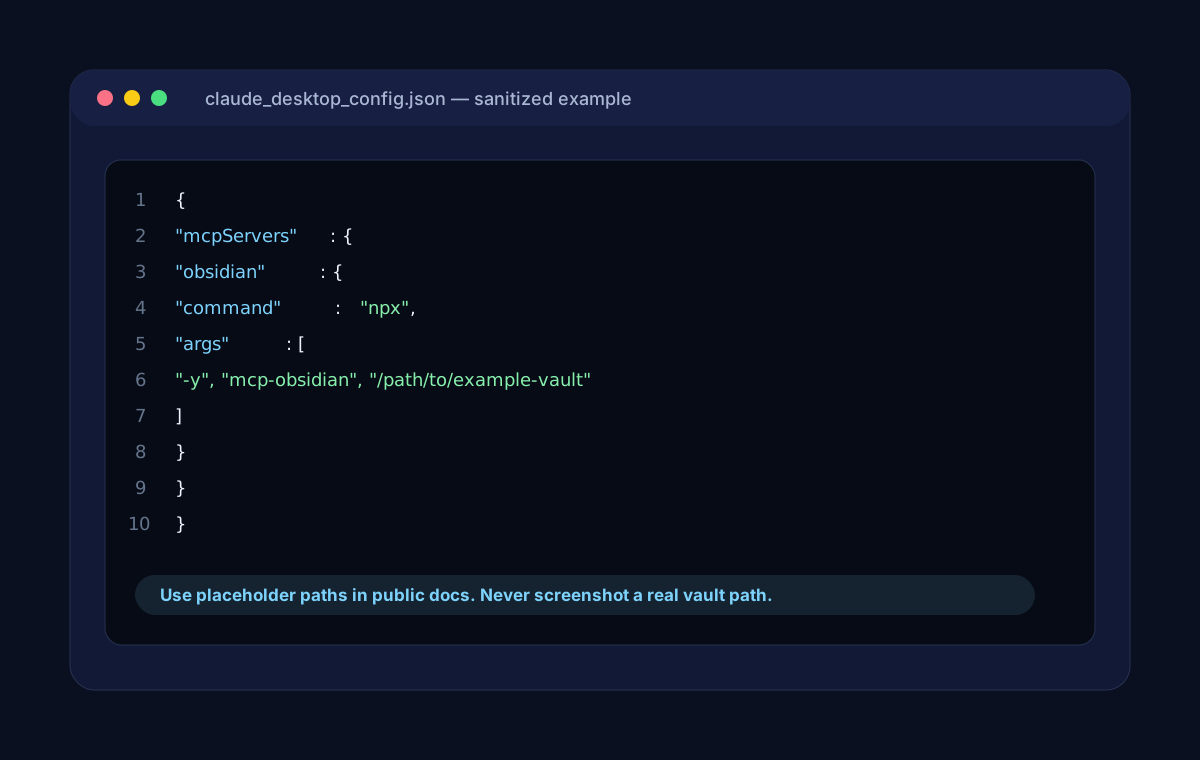
3. Add a sanitized MCP server config
Example using mcp-obsidian:
{
  "mcpServers": {
    "obsidian": {
      "command": "npx",
      "args": [
        "-y",
        "mcp-obsidian",
        "/path/to/example-vault"
      ]
    }
  }
}
Replace /path/to/example-vault with the absolute path to the vault on your computer. Do not publish screenshots that show the real path.
4. Restart Claude Desktop
After saving the config, fully restart Claude Desktop. If the server connects, Claude should show the available MCP tools in the tools menu.
Try a low-risk prompt first:
Use the Obsidian tool to search for notes tagged #claude-ready.
List the matching note titles only. Do not edit anything.
Then try reading a single known note:
Read the note named "Claude brief" and summarize its headings.
Do not create, edit, move, or delete files.
If that works, the basic connection is healthy.
Prompt patterns that work well
Summarize a topic across notes
Search the vault for notes about <topic>.
Read the most relevant 3-5 notes.
Return:
1. a short summary,
2. the strongest links between notes,
3. contradictions or stale assumptions,
4. suggested next notes to write.
Do not modify the vault.
Turn rough notes into an article outline
Read the selected note and produce an article outline.
Keep technical steps concrete.
Use placeholders for private details.
Flag any claim that needs verification.
Return Markdown only.
Do not edit the original note.
Create a reviewable note
If you trust the write tools, make the write target explicit:
Create a new note at Drafts/example-topic-outline.md.
Base it on the note "Example Topic".
Include a "Review needed" section at the top.
Do not change the source note.
This is safer than saying “clean up my notes,” because it tells Claude where to put output and what not to touch.
How I structure notes for better Claude results
Claude performs better when notes are predictable. A simple note shape helps:
# Topic title

## Summary

One paragraph explaining the point of the note.

## Facts

- Verified fact with source or link.
- Another verified fact.

## Decisions

- Decision made, with date if useful.

## Open questions

- Question that still needs an answer.

## Links

- [[Related note]]
This gives Claude clear places to look for facts, decisions, and uncertainty.
Safety rules I would keep
The integration is only useful if it does not turn the vault into an accidental leak or a pile of unreviewed edits.
My rules:
- Do not store credentials in Obsidian.
- Do not expose the entire vault unless there is a real reason.
- Start read-only.
- Ask Claude to list intended edits before making them.
- Prefer creating new draft notes over editing canonical notes.
- Keep backups and version history.
- Review diffs if the vault is tracked in Git.
- Use placeholders in anything that might become public.
For public writing, I would explicitly ban:
- real tokens, API keys, cookies, passwords, or private keys,
- private hostnames or dashboard URLs,
- exact internal network maps,
- private filesystem paths,
- screenshots with usernames, browser bars, private domains, or internal service names.
Troubleshooting
Claude does not show the Obsidian tools
Check:
- the JSON is valid,
- the config file is in the right Claude Desktop location,
- Node.js is installed and available in your shell path,
- the vault path is absolute,
- Claude Desktop was fully restarted.
The server starts but cannot see notes
Check:
- the vault path points at the folder containing Markdown files,
- the app has filesystem permissions,
- the path is quoted correctly,
- the vault is stored locally rather than only in a cloud placeholder.
Claude wants to edit too much
Make prompts narrower:
Before editing, propose a plan.
Wait for approval.
When writing, create a new note under Drafts/.
Do not modify existing notes.
The output sounds too generic
Add more structure to the source note:
- state the goal,
- name the audience,
- include examples,
- mark uncertainty,
- link related notes,
- say what tone you want.
My recommended starting point
I would roll this out in this order:
- Use a
Claude brieftemplate in Obsidian. - Copy/paste selected note sections into Claude.
- Save Claude output as new draft notes.
- Add Claude Project instructions for repeated writing rules.
- Test MCP on a disposable vault.
- Enable read/search access for the real vault.
- Only then consider write tools, and only with backups plus explicit approval prompts.
The goal is not to make Obsidian invisible. The goal is to make it easier to turn notes into decisions, outlines, drafts, and next actions while keeping the vault readable, portable, and under your control.